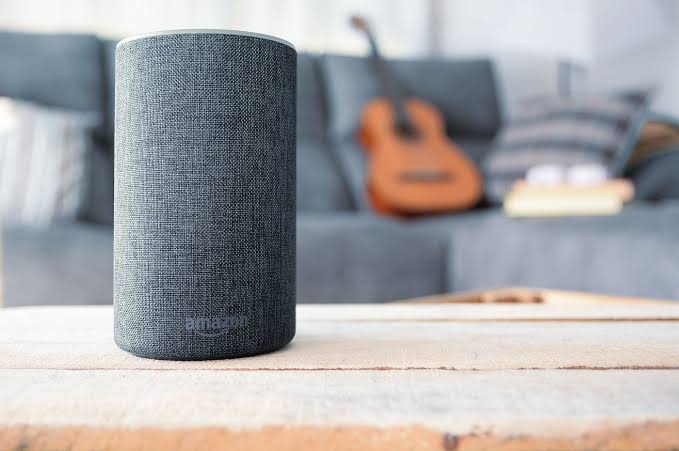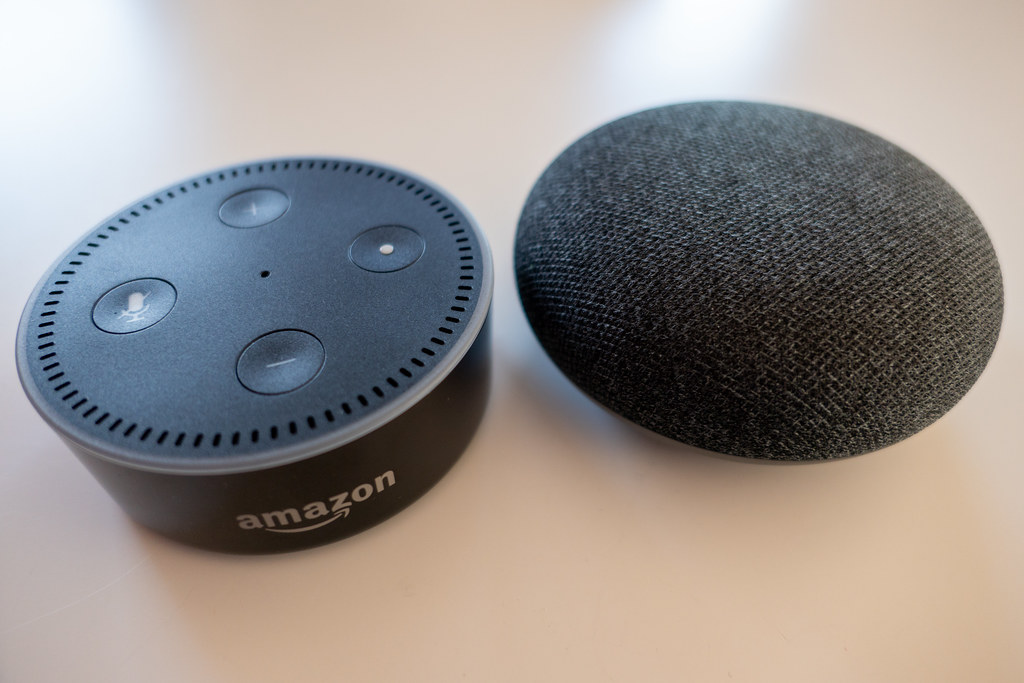
Smart speakers listen for a wake word, and everything after it travels to the cloud. That design is what makes them useful, and it is also why their settings deserve a yearly audit. Most households set up a speaker, say “yes” to every prompt, and never revisit the choices. The result is a growing voice history, recordings shared for product improvement, and voice purchasing left wide open. The good news: every major assistant ships the controls to fix all of it, and the changes take ten minutes. We compared the speakers themselves in our best smart speakers guide. This guide walks through the voice assistant privacy settings you should change today, assistant by assistant.
Voice Assistant Privacy Settings: Why They Matter
A voice assistant records what it hears after the wake word, and those recordings become your voice history. Companies use that history to improve recognition, and historically some of it was reviewed by human workers or used to personalize advertising. All three major platforms now offer clearer controls, but the defaults still favor convenience over privacy.
The stakes go beyond recordings. Voice purchasing lets anyone in the room buy things, and personal results expose your calendar, messages, and home devices to whoever says the wake word. Each setting below closes one of those gaps, and none of them breaks the assistant. You lose a little convenience and gain a lot of control.
A few minutes of history review often turns up surprises. Expect a clip of a TV show that triggered the speaker, a conversation you forgot, or a purchase confirmation you never made. Each surprise is a setting waiting to change, which is why the review itself matters as much as the toggles.
What the Companies Actually Do With Your Voice
The platforms differ in how far voice data travels. Amazon and Google have historically used audio clips to improve recognition, with opt-outs buried in settings, and both let you review or delete that history. Apple takes a different path: most Siri processing happens on the device, and its audio-sharing toggle is opt-in rather than default. None of the three is silent about legal requests, so treat any speaker near a sensitive conversation as a potential witness.
Retention also differs. Amazon and Google offer auto-delete windows measured in months, while Apple keeps requests brief by default. Whatever the platform, treat your voice history like a recycling bin and clear it on a schedule.
What Your Assistant Actually Hears
Speakers buffer audio locally to detect the wake word, and only the moments after it are sent to the cloud. In practice, false activations mean the buffer occasionally over-triggers, sending a clip nobody intended. Checking your voice history regularly reveals these accidental captures, which is exactly why the history tools matter.
Deleting history does not weaken recognition meaningfully, since models improve from aggregate data rather than your personal clips. That fact removes the main excuse for leaving recordings on. Google’s privacy policy and Apple’s privacy approach explain each platform’s data use in detail. The FTC’s device security guidance covers the account hygiene that protects the whole system.
Alexa: Settings to Change Now
Open the Alexa app, go to Settings, then Alexa Privacy, and work through this list:
- Review and delete voice history. Under Voice History, review recent recordings, delete anything unexpected, and enable automatic deletion every 3 or 18 months.
- Turn off voice recording use. Disable “Use Voice Recordings to Improve Amazon Services” and the message transcription improvement toggle, which stops your audio from training Amazon’s models.
- Lock voice purchasing. Under Voice Purchasing, require a spoken confirmation code, and disable purchases entirely if children share the home.
- Check skills’ microphone access. Skills can request mic access, so review the permissions each enabled skill holds.
- Manage household profiles. Keep kids on their own profile, since recognition and purchase permissions follow the profile.
- Audit shared devices. Speakers in shared rooms carry everyone’s history, so check the devices attached to your profile and remove old ones.
- Tighten Drop In. Keep Drop In limited to your household or disable it, since it lets approved contacts listen through the speaker.
Google: Settings to Change Now
Google’s controls live mostly in two places: the Google app’s Assistant settings and your activity page:
- Delete and cap activity. Open My Activity, delete Voice and Audio Activity, then set auto-delete to 3 months.
- Pause audio activity. In Assistant settings, turn off Voice Match activity sharing and pause “Voice and Audio Activity” if you prefer no history at all.
- Stop using audio for improvement. Disable the toggle that includes audio recordings in product improvement, which is separate from text activity.
- Require purchase confirmation. Set purchases to require spoken confirmation and Voice Match, so a stranger cannot order from your account.
- Restrict personal results. Keep personal results tied to Voice Match, which stops guest voices from reading your calendar.
- Check linked services. The Assistant connects to music, news, and home services, and each holds permissions worth reviewing.
- Review routines. Routines read the news aloud, which sounds innocent until one reads your personal results to a guest.
Siri and HomePod: Settings to Change Now
Apple’s controls live in the iPhone’s Siri settings and the Home app for speakers:
- Delete Siri history. Open Settings, Siri and Search, then Siri and Dictation History, and delete it. Disable the learning toggles there if you want.
- Turn off audio sharing. Disable “Improve Siri and Dictation,” which stops your requests from being used to improve Apple’s services.
- Lock “Hey Siri” when the device is locked. Requiring the phone to be unlocked before Siri responds closes a real gap on lost devices.
- Manage HomePod requests. In the Home app, each speaker has settings for personal requests and sending audio to Apple, and both deserve review.
- Review per-app Siri access. Apps request Siri permission for their own commands, and stale grants accumulate like skills do.
- Keep Siri out of the always-on role. If a speaker is in a sensitive room, its mute button physically cuts the microphones, which no setting replaces.
Settings That Apply to All Three
- Use the mute button. A physical microphone cut beats any software toggle for private conversations.
- Separate profiles for family members. Guest voices should never inherit your history, purchases, or personal results.
- Audit connected apps and skills. Every assistant lets third parties request access, and stale permissions accumulate.
- Update the firmware. Assistant privacy fixes ship with software updates, so an outdated speaker is an exposed speaker.
- Wipe before resale. Delete history, factory-reset, and sign out of every account before selling or returning a device.
Speakers are not the only microphones in a smart home. Video doorbells and cameras pack two-way audio too, and their clips join the same privacy equation. The settings above protect the assistants, while our video doorbell guide covers the recording side of the front door.
Quick Reference
| Control | Alexa | Siri | |
|---|---|---|---|
| Voice history location | Alexa Privacy menu | My Activity page | Siri and Dictation History |
| Auto-delete option | 3 or 18 months | 3 to 36 months | Manual |
| Audio for improvement | Toggle, off by default after review | Toggle, separate from text | Toggle, Improve Siri |
| Purchase lock | Confirmation code | Voice Match required | Not applicable |
| Best mute habit | Button on every Echo | Button on every speaker | Button on HomePod |
Use the table as a map for the reset below, since each platform names its menus differently.
The Ten-Minute Privacy Reset
Do these once per assistant, and once per family member’s device:
- Delete existing voice history and enable automatic deletion.
- Turn off every toggle that shares audio for improvement.
- Require confirmation for voice purchases, or disable them.
- Tie personal results to voice recognition.
- Review third-party app and skill permissions.
- Test the mute button, and use it for sensitive conversations.
Set a calendar reminder for the same reset next year, since assistants change their defaults faster than users notice.
Kids, Guests, and Shared Homes
Shared homes deserve special care. Children should run their own profile with purchases disabled and personal results off, and guest voices should be recognized as guests rather than trusted family. If visitors stay often, check whether your assistant treats their voice as yours. A well-meaning guest asking for “my messages” reveals more than they intend. One rule protects every scenario: anything a stranger could order, read, or unlock with their voice is a setting to change today.
The Accounts Behind the Speakers
Every assistant setting lives behind an account, and account security is the lock on the whole system. Use a unique password and two-factor authentication on the Amazon, Google, or Apple account that runs the speakers. A compromised account bypasses every privacy toggle you set. Review the signed-in devices list periodically, and sign out anything you no longer own. Check recovery options too, since attackers prefer the reset link over the password.
Old accounts deserve the same audit. A speaker from years ago tied to an abandoned email still carries history and permissions, and deleting that account removes both. Treat the account audit as part of the privacy reset. A well-configured assistant on a weak account is a locked door with the key under the mat.
Final Thoughts
The voice assistant privacy settings in this guide are the rare security task that takes minutes and pays for years. Delete the history, stop the audio sharing, and lock the purchases. Make the mute button a habit. Your assistant then keeps every feature you actually use, while dropping the ones you never agreed to. Assistants change their menus and defaults constantly, so treat this as an annual reset rather than a one-time fix. Do it once today, and again next year, and the convenience stays while the exposure shrinks. If you’re still choosing between ecosystems, our Amazon Echo vs Google Nest comparison covers the privacy differences before you commit.
Prefer the Apple route? Our Apple HomePod as a smart home hub analysis covers its privacy posture in depth.
Written by Ángel D. Serrano, who runs Automating Our Home. Finishing a philosophy degree, a patient reader of manuals, and the person who has broken more smart plugs than he will admit. He writes the guides so you only have to decide once.